
Windows Server regularly prompting BitLocker key – steps to resolve on Dell hardware
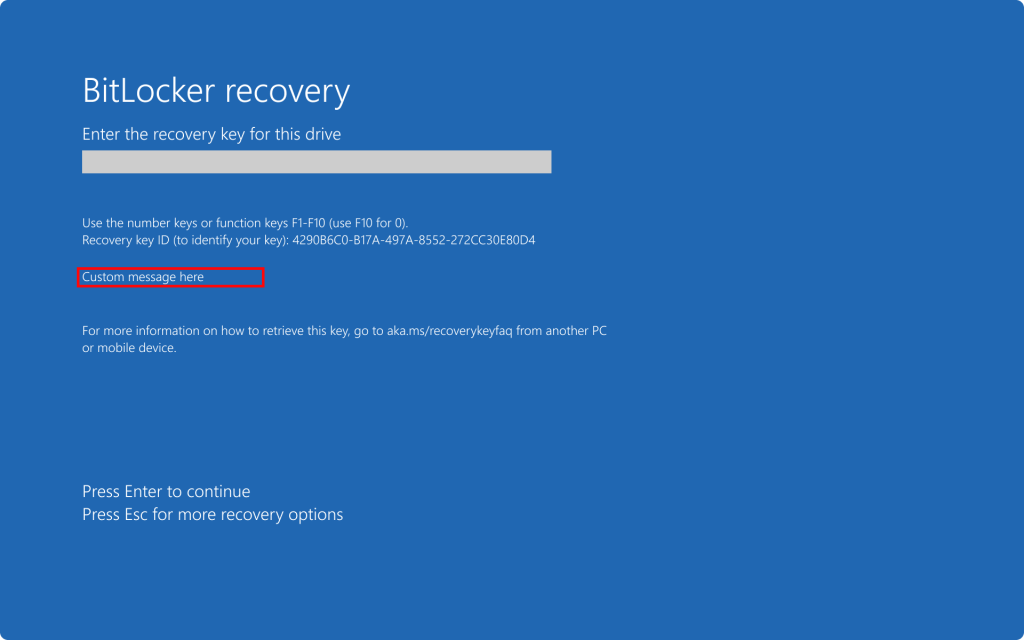
BitLocker is a Windows security feature that provides encryption for entire volumes, addressing the threats of data theft or exposure from lost, stolen, or inappropriately decommissioned devices. Typically a trigger for a key is requested when Windows observes changes to the OS software or has detected some sort of hardware change and requires a 48 digit unlock key which is presented in 8 groups of 6 digits.
If you are finding lately that this unlock process is being triggered more frequently, in situations where a power disruption has cold booted the system or a simple restart has occurred – it’s worth spending a small amount of time working through some basic troubleshooting steps and BIOS changes to iron out the configuration.
Details in this guide are largely centred around Dell server hardware, as this is the primary server hardware that I use in my field.
Pop the hood – swap the BIOS battery
For the first stage, you are going to need to have an occasion where you can get full acces to pop the lid of the server and take it offline for 10-15 mins while you make some changes.
As with any computer system, the vast majority of mainboards hold BIOS settings using coin batteries – most common is the CR2032 which is the one which Dell use in a number of models.
If your system is older than 3 years, for the negligible cost to swap it out you can negate a bunch of issues related to BIOS function by completing this task.
Generally the process isn’t too difficult to decipher, power the device off, unlock and remove the side/top cover to access the inside of the machine and look around the mainboard to locate the coin battery and it’s holder – most of these are either standing off the board vertically in a black plastic holder or sit horizontal with the board with an arm holding them to a small holder frame.
Below is a video on replacing a battery in a PowerEdge T340 server:
Making sure the correct BIOS settings are applied
Getting the BitLocker unlock screen more frequently outside of a questionable coin battery may also indicate issues with the system keeping track of it’s security state due to the way it is accessing the TPM Module. We need to check some BIOS settings on the system.
In later models of Dell hardware with iDRAC 9 installed and properly configured, you can check the current settings and store changes in memory for the next reboot so that you do not need to manage the process from a cold boot. Older editions of the iDRAC did not apply this change very well – so keep this in mind if you are considering trying to do it all from iDRAC.
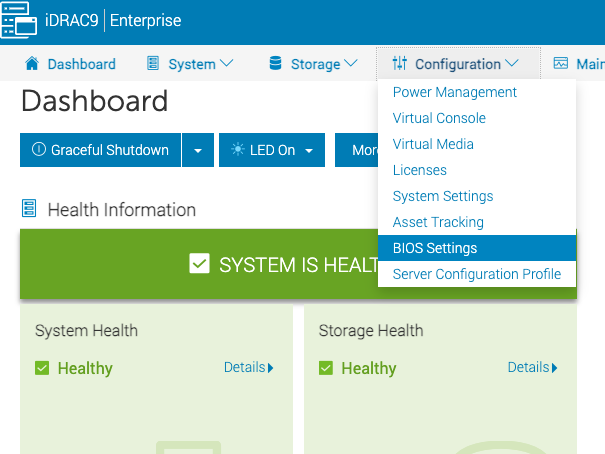
When you are logged into iDRAC, head to the Configuration menu and select BIOS Settings
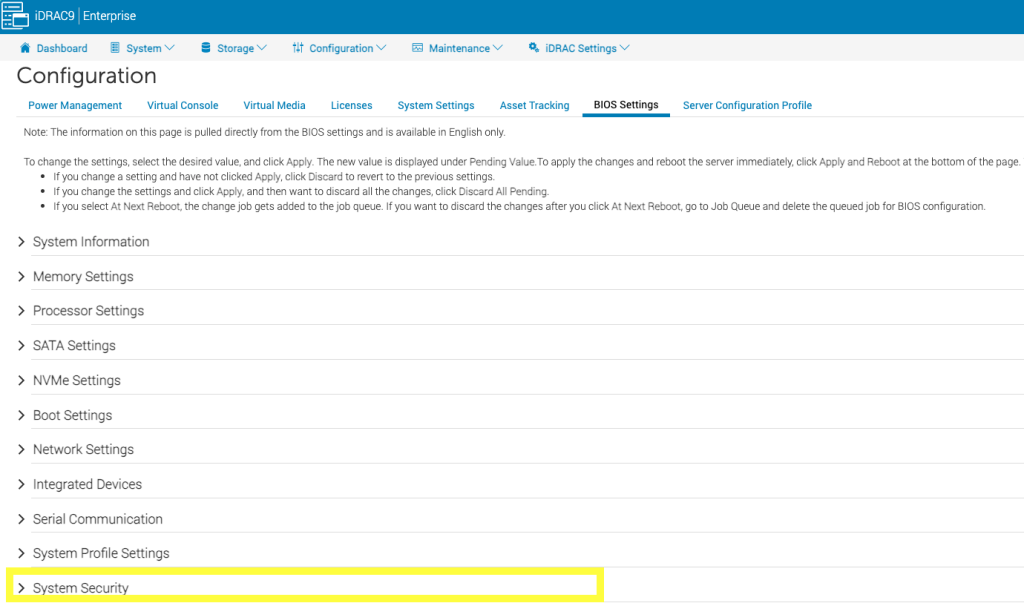
Once the BIOS Settings section of the Configuration page has loaded, you will need to expand the System Security section by clicking on it.
Now that you have this section expanded, you will need to scroll down to find the items that you need to verify and/or change.
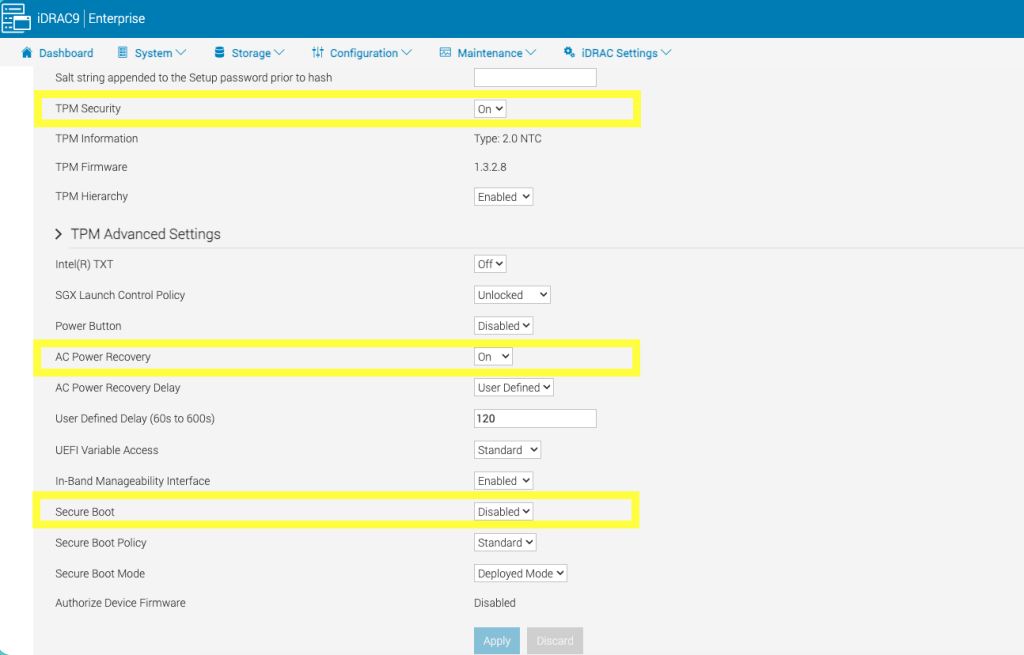
TPM Security - this option needs to be set as ON
AC Power Recovery - this option needs to be set as ON
Secure Boot - this option needs to be set as Enabled
Once you have verified the settings state on your server, made appropriate changes to apply correct settings, be sure to click on the blue Apply button at the bottom of the settings screen.
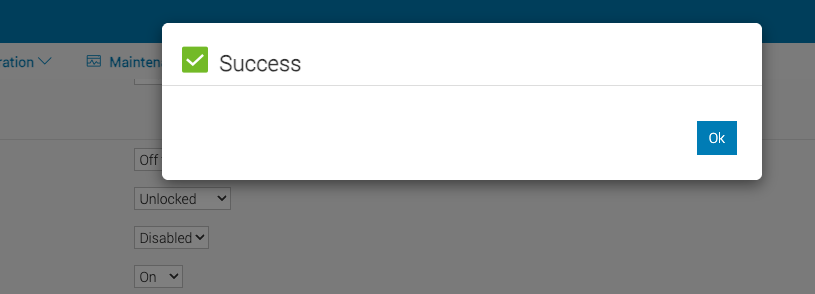
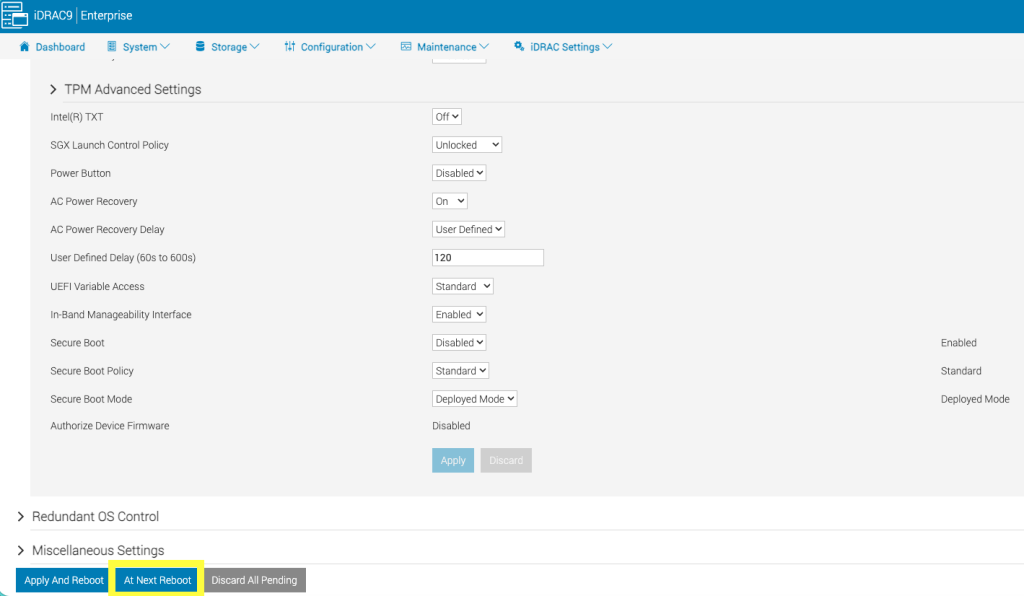
iDRAC will report success at saving the categories settings, but we still have to queue the changes to be applied in the BIOS when the system is restarted. At the very bottom of the settings screen that is currently open, be sure to click on At Next Reboot which will queue the changes for the next time the system is rebooted.
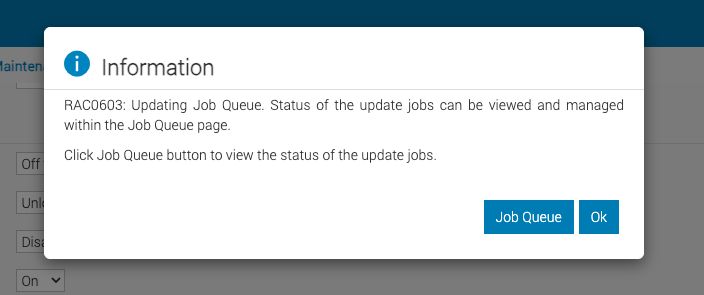
iDRAC will send the changes through and report that the task is added to the job queue, which you can view by clicking on Job Queue or you can supress the dialog by clicking Ok.
From here it is up to you as to how you might like to reboot your server, whether you complete this in front of the device or using iDRAC itself.
Successful output from iDRAC and a faultless boot of Windows Server should confirm that the changes are made – but as I always like to be absolutely certain that changes are applied, I go in for a second reboot of the system just so I can see the process play out in front of me a second time.
If you are still having issues with BIOS setting application or Windows still triggering the BitLocker key request – you may require additional support from your hardware vendor or the server administration teams within your organisation.