
uniFLOWSmoothMonitor is a lightweight and unobtrusive macOS application that works away in your top menu bar and keeps the uniFLOW Smart Client cloud printing connector used by your school running smoothly whenever you're on site and connected to the WiFi or Cabled networks, the times where you need reliable printing connectivity.
While the application doesn't make much noise, it's working away in the background periodically checking to see if you're on the company network and ensuring the uniFLOW Smart Client is active.
If the SmartClient has stopped or crashed, uniFLOWSmoothMonitor will automatically relaunch it.
This is especially helpful for staff who frequently move between the office and remote work, making sure printing just works when you are back on site.
Every 5 minutes, uniFLOWSmoothMonitor runs a quick and simple background check:
uniFLOWSmoothMonitor uses less than 30mb of memory while on duty and doesn't require any special settings adjustments as it uses only your local connectivity information to work out whether you are on site.
You will know uniFLOWSmoothMonitor is running and it's current status by looking at the small dot in your macOS menu bar:
🟢 Green (Active & Healthy): You're on the network and the uniFLOW SmartClient is running normally.
🔴 Red (Restarting/Issue): The uniFLOW SmartClient wasn't running, and the app is currently trying to restart it.
🟡 Yellow (Offsite/Off-network): You're not on the organisation's network (e.g., working from home).
Check has discovered you are not on the host network so no action is needed.
⚪ Grey (Unknown State): The app has just launched and is working out your current status.
Clicking the uniFLOWSmoothMonitor traffic light icon in the menu bar gives you a few options:
•Check Now: Forces an immediate status check — great for troubleshooting.
•About: Shows the app version and developer details.
•Quit: Closes the application.
uniFLOWSmoothMonitor will be installed automatically by your IT administrators to your computer through the use of a MDM (Mobile Device Management) tool which your work device is registered to.
This will happen shortly after your device has been added to an application group, provided you have the device powered on and connected to the Internet (this doesn't need to be on-site, as the MDM is an online platform).
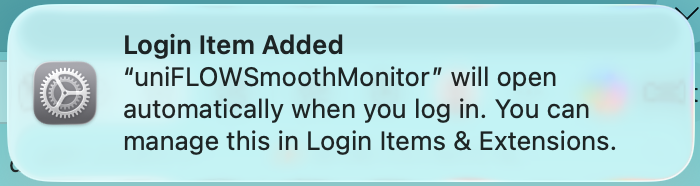
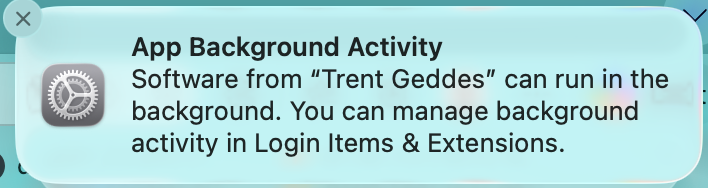
You will notice the application is installed when the traffic light icon appears in your menu bar, along with notifications that an application has been added as a login item and with background activity permissions as per the screenshots below.
•uniFLOWSmoothMonitor only monitors whether the uniFLOW SmartClient app is running; it doesn't check actual printer availability.
•Network detection relies on IP and gateway configurations.
•The app uses a silent recovery model and does not display notifications to the user if a failure occurs.
When deployed via MDM, SmoothFLOW is installed in /Applications and set to launch automatically at user login via a LaunchAgent. It runs completely silently with no Dock icon.
The app is designed to be extremely lightweight, using only about 15–25 MB of memory and negligible CPU power, as it only wakes up every 5 minutes for a brief check.
Logs are saved locally to ~/Library/Logs/SmoothFLOW-Monitor.log. These logs contain network detection results, app state changes, restart attempts, and any errors.
If a user is having issues, you can check the log file, confirm their device IP and gateway match your configured values, and verify the SmartClient is located at /Applications/uniFLOW SmartClient.app.
To manually restart the background agent, use:
launchctl kickstart -k gui/$(id -u)/com.trent.smoothflow